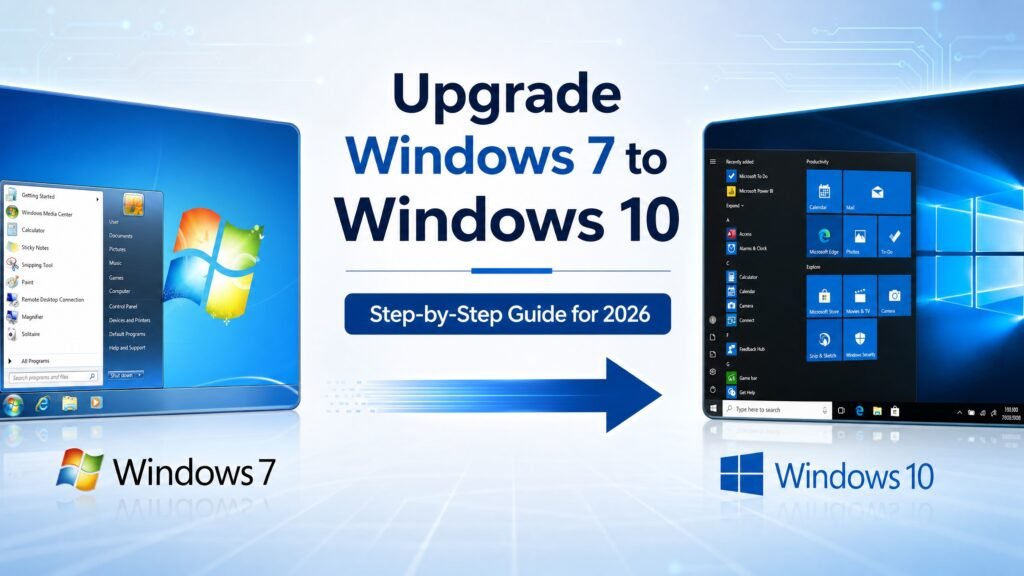
To upgrade Windows 7 to Windows 10, download the free Media Creation Tool from Microsoft, run it, choose “Upgrade this PC now,” and keep your files and apps — the whole process takes 30–90 minutes and works on most hardware from 2010 onward. The catch nobody tells you: since September 2023, Microsoft has officially closed the free upgrade path, so your old Windows 7 key will most likely not activate the new installation — you’ll need a genuine Windows 10 license to finish the job properly.
That is the honest version of how to upgrade windows 7 to windows 10, and this guide walks you through every step: checking your hardware, backing up, running the upgrade, handling activation, and what Windows 10’s own end of support means for you in 2026. No tricks, no “free activator” nonsense that could infect your machine — just the real process and the real costs.
Table of Contents
- Can you still upgrade Windows 7 to Windows 10 for free?
- Before you start: requirements and backup checklist
- Upgrade Windows 7 to Windows 10: step-by-step guide
- The activation reality in 2026
- In-place upgrade vs clean install
- After the upgrade: Windows 10 end of support explained
- Should you skip Windows 10 and go straight to Windows 11?
- Troubleshooting common upgrade errors
- FAQ
Can you still upgrade Windows 7 to Windows 10 for free?
Partially — and this is where most upgrade windows 7 to windows 10 guides mislead you. There are two separate things happening when you upgrade Windows 7 to Windows 10, and only one of them is still free:
- The upgrade installation itself is free. Microsoft’s Media Creation Tool still downloads Windows 10 at no cost, and it will happily perform an in-place upgrade over Windows 7, keeping your files and (in most cases) your programs. Nothing stops you from doing this today.
- Free activation is officially over. Microsoft’s famous “one-year” free upgrade offer from 2015–2016 quietly kept working for seven extra years — until September 2023, when Microsoft announced the path was closed and began blocking Windows 7 and 8.1 keys from activating fresh Windows 10 installs. Independent tests since then confirm it: upgraded machines frequently land on an unactivated Windows 10 desktop.
There is one important exception. If your PC was already upgraded and activated on Windows 10 at any point in the past, Microsoft’s servers permanently remember that hardware. Reinstall or re-upgrade windows 7 to windows 10 on that same machine, and the digital license usually re-attaches automatically — especially if it was linked to your Microsoft account.
For everyone else: plan on buying a genuine Windows 10 key. The good news is that genuine keys from legitimate resellers now cost a small fraction of the old $139–$199 retail prices, so the “free upgrade” era ending stings far less than it sounds.
Before you start: requirements and backup checklist
Before you upgrade windows 7 to windows 10, check the basics: any PC that ran Windows 7 comfortably can almost always upgrade Windows 7 to Windows 10 without hardware changes. The official minimums are modest:
| Requirement | Minimum for Windows 10 |
|---|---|
| Processor | 1 GHz or faster |
| RAM | 1 GB (32-bit) / 2 GB (64-bit) — 4 GB+ recommended |
| Storage | 32 GB free (we recommend 40 GB+ free before upgrading) |
| Graphics | DirectX 9 with WDDM 1.0 driver |
| Display | 800×600 |
| Internet | Required to download the tool and updates |
Your pre-flight checklist — do not skip this:
- Back up everything important to an external drive or cloud storage. In-place upgrades preserve files, but “usually” is not a backup strategy.
- Note your Windows 7 edition (Home Premium, Professional, Ultimate — press Windows key + Pause to check). Home editions map to Windows 10 Home; Professional and Ultimate map to Windows 10 Pro. If you’re unsure which edition to buy afterward, our Windows 10 Home vs Pro comparison settles it in five minutes.
- Free up disk space — uninstall programs you no longer use and empty the Recycle Bin.
- Update or uninstall old antivirus software. Decade-old security suites are the number-one cause of failed upgrades.
- Plug laptops into power. A dead battery mid-upgrade can corrupt the installation.
- Write down your product keys and export browser bookmarks — five minutes of insurance.
Upgrade Windows 7 to Windows 10: step-by-step guide
Here is the full process to upgrade windows 7 to windows 10 using Microsoft’s official tool. Set aside an afternoon; slower machines with mechanical hard drives can take two hours.
Step 1 — Download the Media Creation Tool. The official way to upgrade windows 7 to windows 10 starts here. On your Windows 7 PC, visit Microsoft’s official Windows 10 download page and click “Download tool now” under Create Windows 10 installation media. This is the only download you need — avoid any third-party “upgrade assistant” sites.
Step 2 — Run the tool and accept the license terms. Right-click the downloaded file and choose Run as administrator. Accept the terms and wait while the tool prepares.
Step 3 — Choose “Upgrade this PC now.” This is the in-place option that keeps your data. The tool downloads Windows 10 (several gigabytes — be patient on slow connections) and verifies the download.
Step 4 — Choose what to keep. Select “Keep personal files and apps” when offered. If that option is greyed out, your Windows 7 language or edition doesn’t match the Windows 10 build, and a clean install may be required (see below).
Step 5 — Install and wait. Click Install. Your PC will restart several times over 30–90 minutes. Do not power off mid-process. When you land on the Windows 10 desktop, sign in, let Windows Update fetch current drivers, and confirm your files survived.
Step 6 — Activate. Go to Settings → Update & Security → Activation. If it shows “Windows is activated with a digital license,” your machine had a prior entitlement — you’re done. If it shows an activation error, that’s the 2026 norm, not a failure on your part: click Change product key, enter a genuine Windows 10 key, and activation completes in seconds. Our product key activation guide covers every scenario with screenshots.
The activation reality in 2026
Let’s be completely straight about the activation side of the upgrade windows 7 to windows 10 process, because it’s where other guides get people in trouble.
When you upgrade windows 7 to windows 10 in 2026, three outcomes are possible:
- It activates automatically. Your hardware had a previous Windows 10 digital license (perhaps a prior owner upgraded it), or your entitlement was linked to your Microsoft account. Lucky you — run the Activation Troubleshooter under Settings → Activation if it needs a nudge.
- Your old Windows 7 key is rejected. This is the most common result since Microsoft’s September 2023 block. The fix is simply a genuine Windows 10 key.
- You run Windows 10 unactivated. Technically the system works with a watermark, no personalization options, and constant nag screens. We don’t recommend living like this, and we absolutely do not recommend the “free activator” tools promoted on shady sites — they are a leading malware delivery method, and an infected machine costs far more than a license key ever will.
In-place upgrade vs clean install
The in-place upgrade windows 7 to windows 10 method above is right for most people because it keeps everything. But consider a clean install — booting from a USB created by the same Media Creation Tool and formatting the drive — if any of these apply:
- Your Windows 7 machine is slow, cluttered, or has ever had malware. A decade of accumulated junk migrates with an in-place upgrade; a clean install leaves it behind.
- The upgrade fails repeatedly with cryptic errors.
- You’re replacing the old hard drive with an SSD anyway (the single best speed upgrade for a Windows 7-era PC — often more noticeable than the OS change itself).
One more honest tip from experience: if your Windows 7 machine still runs a mechanical hard drive, buy a cheap SATA SSD before you upgrade windows 7 to windows 10 and clean-install onto it. The combination of Windows 10 plus an SSD makes a 2012 laptop feel five years younger, and you keep the old drive untouched as a natural backup of your entire previous system — the safest rollback plan there is.
A clean install erases the drive, so back up first, and have your genuine Windows 10 key ready — you can enter it during setup or skip and activate afterward.
After the upgrade: Windows 10 end of support explained
Here is the part of the upgrade windows 7 to windows 10 story that most 2026 guides bury, and we refuse to: Windows 10 itself reached end of support on October 14, 2025. You would be upgrading from one unsupported system to another — a much more secure and modern one, but no longer receiving free monthly patches.
Why the decision to upgrade windows 7 to windows 10 is still absolutely worth it:
- Windows 7 has been unpatched since January 2020 — six-plus years of unfixed vulnerabilities. Windows 10 was fully patched until late 2025 and has vastly stronger built-in security (modern Defender, exploit mitigations, secure boot support).
- Modern software has abandoned Windows 7: current browsers, Office versions, and most apps simply refuse to install. Windows 10 runs today’s software.
- Consumer ESU: eligible Windows 10 (version 22H2) devices can enroll in Extended Security Updates — free via Windows Backup sync, 1,000 Microsoft Rewards points, or a one-time $30 covering up to 10 devices — buying security patches through the consumer deadline (practically October 13, 2026; verify the current date on Microsoft’s live ESU page).
- The long-term play for old hardware: Windows 10 IoT Enterprise LTSC 2021 receives security updates until January 13, 2032 under Microsoft’s lifecycle policy. For Windows 7-era machines that will never pass the Windows 11 hardware check, it’s the only path to a supported Windows for years to come — and it runs lighter than regular Windows 10. We stock it for exactly this audience: Windows 10 IoT Enterprise LTSC 2021 — $13.99.
For the complete picture, read our full Windows 10 end of support guide.
Should you skip Windows 10 and go straight to Windows 11?
If your PC qualifies — honestly, yes, skip the upgrade windows 7 to windows 10 step entirely. But most Windows 7 machines don’t qualify. Windows 11 demands TPM 2.0, Secure Boot, and a 2018-or-newer supported CPU (8th-gen Intel / AMD Zen 2 onward). Hardware that shipped with Windows 7 almost universally fails at least one of those checks.
The practical decision tree:
- PC from 2018 or later (rare for Windows 7, but it happens): upgrade windows 7 to windows 10 first, activate with a genuine key, then take the free Windows 11 upgrade — a Windows 10 license includes the Windows 11 entitlement on eligible hardware.
- PC from 2010–2017: Windows 10 is your ceiling. Standard Windows 10 plus ESU covers you short-term; LTSC 2021 covers you to 2032.
- PC older than 2010: the kindest advice is to put the license money toward newer used hardware — even a $150 refurbished office PC will outrun it.
<a id=”troubleshooting”></a>
Troubleshooting common upgrade errors
- “Keep personal files and apps” greyed out — language or edition mismatch between your Windows 7 and the Windows 10 build. Download the ISO matching your language, or do a clean install.
- Error 0x8007007f / tool crashes — run as administrator, disable antivirus, and re-download the tool.
- Endless “checking for updates” — install Windows 7 SP1 and the servicing-stack updates first, or skip straight to a clean install from USB.
- Activation error 0xC004F050 — the key doesn’t match your edition (Home key on a Pro install, or vice versa), or it’s a rejected Windows 7 key. Verify the edition under Settings → System → About and use a matching genuine Windows 10 key.
- Missing drivers after upgrade — run Windows Update twice, then fetch chipset/graphics drivers from the PC manufacturer’s support page.
- The upgrade windows 7 to windows 10 process rolls back — usually disk space (need 32 GB+ free) or ancient security software. Clear both and retry.
Ready to upgrade Windows 7 to Windows 10? Get a genuine key first
Decided to upgrade windows 7 to windows 10? Genuine Windows 10 licenses at Kymakers — instant email delivery, one-time purchase, activated on Microsoft’s own servers, money-back guarantee and 24/7 support.
- Browse all Windows 10 editions → Windows 10 category
- Windows 10 IoT Enterprise LTSC 2021 (security updates to January 2032 — the smart pick for Windows 7-era hardware) — $13.99 → View product
Not sure which edition fits? Our Windows 10 Home vs Pro comparison answers it, and our activation guide walks you through entering the key.
Upgrade Windows 7 to Windows 10 — FAQ
Is it still possible to upgrade Windows 7 to Windows 10 in 2026? Yes. The Media Creation Tool still performs the in-place upgrade and keeps your files and apps. Activation, however, now requires a genuine Windows 10 license in most cases — the free-activation era ended in September 2023.
Will my Windows 7 product key activate Windows 10? Most likely not. Microsoft began blocking Windows 7 and 8.1 keys from activating Windows 10 in September 2023. Some machines with a prior Windows 10 digital license re-activate automatically, but a fresh entitlement requires a Windows 10 key.
Will I lose my files if I upgrade Windows 7 to Windows 10? No — choose “Keep personal files and apps” during setup and everything stays in place. Back up to an external drive anyway; no upgrade method is 100% risk-free.
How long does it take to upgrade Windows 7 to Windows 10? Typically 30–90 minutes after the download finishes, with several automatic restarts. Old mechanical hard drives can stretch it to two hours.
Is Windows 10 still safe to use after its end of support? Windows 10 stopped receiving free security updates on October 14, 2025. It remains far safer than Windows 7, and you can extend protection via the consumer ESU program ($30 or free enrollment paths) or run the LTSC 2021 edition, which is patched until January 2032.
Can my Windows 7 PC go directly to Windows 11? Almost never. Windows 11 requires TPM 2.0, Secure Boot and a 2018-or-newer CPU — checks that Windows 7-era hardware fails. Windows 10 (standard or LTSC) is the realistic destination.
Do I need to buy Windows 10 before or after the upgrade? Either works. You can run the upgrade first and enter your genuine key afterward under Settings → Update & Security → Activation → Change product key.
Written by the KYMakers Editorial Team. Technically reviewed by a Microsoft licensing specialist. Last updated: August 1, 2026. KYMakers sells genuine, one-time-purchase Microsoft license keys with instant email delivery.