
Looking for a powerful, secure, and scalable server OS with advanced features?
Windows Server 2022 Datacenter is designed for enterprise environments, large-scale virtualization, and hybrid cloud scenarios. With advanced security, software-defined storage, and unlimited virtualization rights, Datacenter is the ideal choice for businesses needing maximum flexibility and performance.
In this guide, you’ll learn how to:
- Verify system requirements
- Download official installation media
- Install Windows Server 2022 Datacenter (clean or upgrade-in-place)
- Activate & license correctly
Step 1: Quick Specs & Requirements
- Editions: Standard, Datacenter, Datacenter: Azure Edition (this guide focuses on Datacenter)
- CPU: x86-64 (64-bit) compatible; modern multi-core recommended
- RAM: 2 GB+ (Desktop Experience) / 512 MB (Server Core)
- Storage: 32 GB+ minimum (64 GB+ recommended for roles/updates)
- Firmware/Security: UEFI 2.3.1c with Secure Boot and TPM 2.0 recommended
- Network: 1 Gbps NIC or better
Tip: For enterprise deployments, use redundant storage (RAID/Storage Spaces Direct), multiple NICs, and plan ample CPU/RAM for virtual machines, containers, and cloud integrations.
Step 2: Download Official Installation Media
Go to the Microsoft Evaluation Center for Windows Server 2022
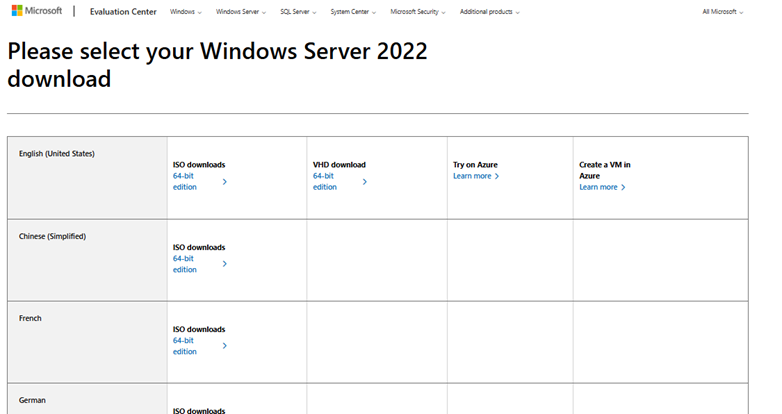
Choose Datacenter and your language.
Download the ISO (or VHDX for virtual environments).
Verify checksums (optional but recommended).
Note: You will need a valid license key to convert the evaluation to a fully activated version. You can purchase a genuine Windows Server 2022 Datacenter License Key here: Buy License Key.
Step 3: Create Bootable Media (If Installing on Bare Metal)
- USB (8 GB+): Use Rufus or the Windows USB/DVD tool to write the ISO
- Virtualization: Mount the ISO directly in Hyper-V/VMware
Need help creating bootable media? Follow this guide: Creating a Bootable Windows USB Drive
Step 4: Install Windows Server 2022 Datacenter
- Boot from the USB/ISO and start setup
- Choose your preferred language, time, and keyboard settings.
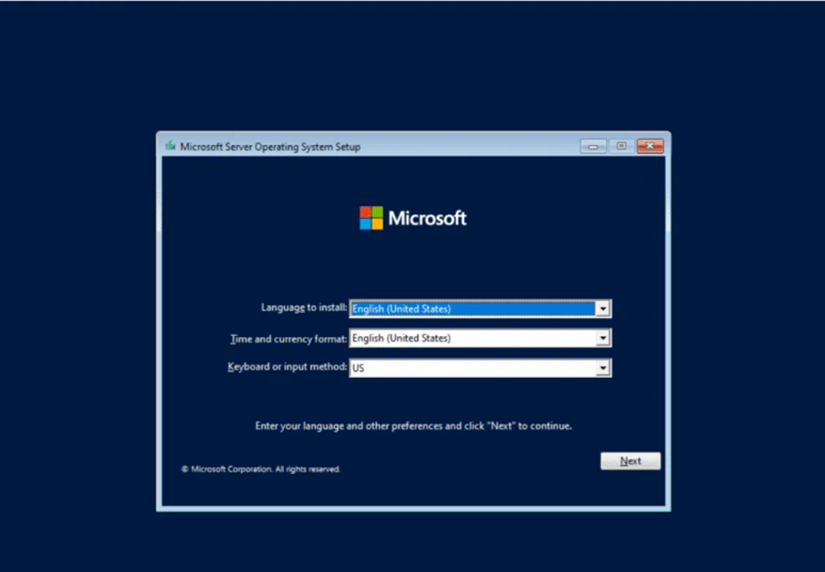
- Click Next. And then Install now.
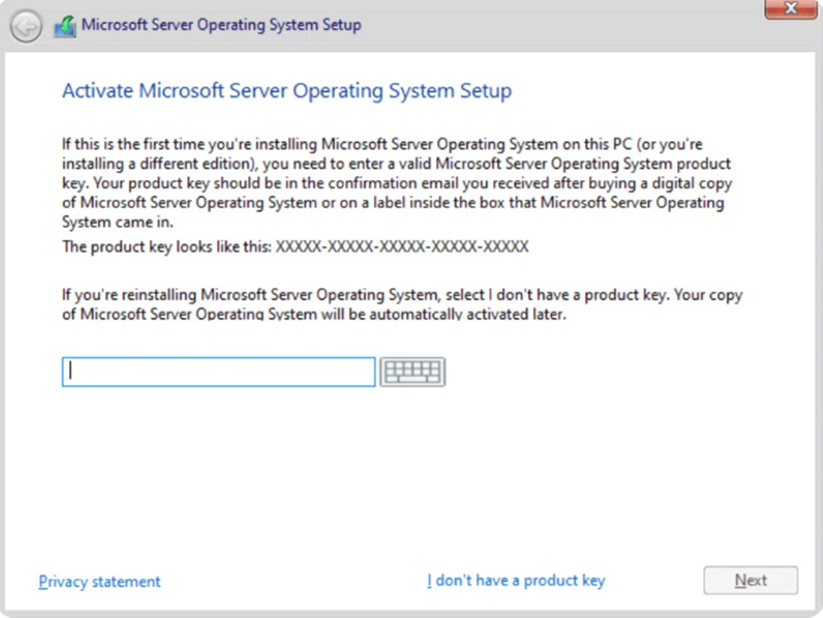
- When prompted, enter your Windows Server 2022 Datacenter product key, or select I don’t have a product key to add it later.
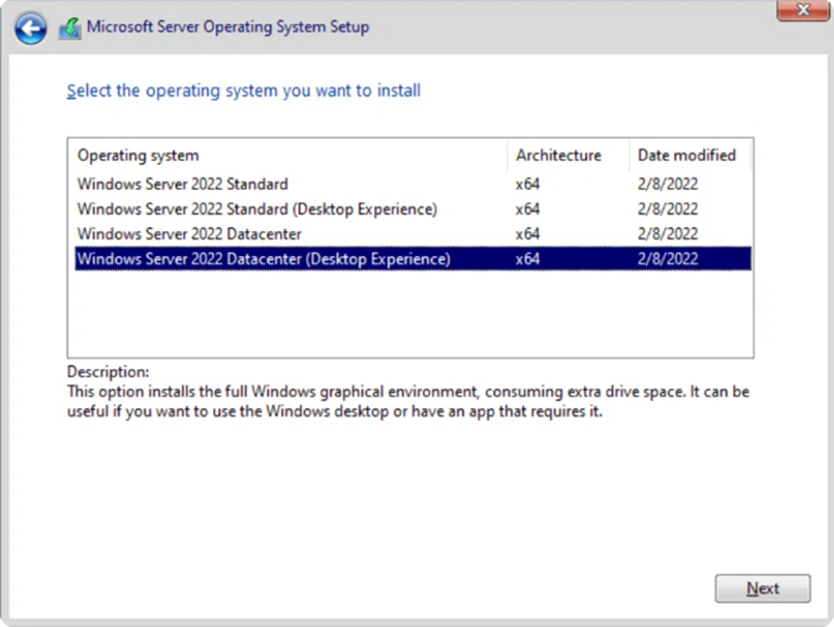
- Choose “Windows Server 2022 Datacenter (Desktop Experience)” for a GUI-based installation.
- Check the box to accept the license terms and click Next.
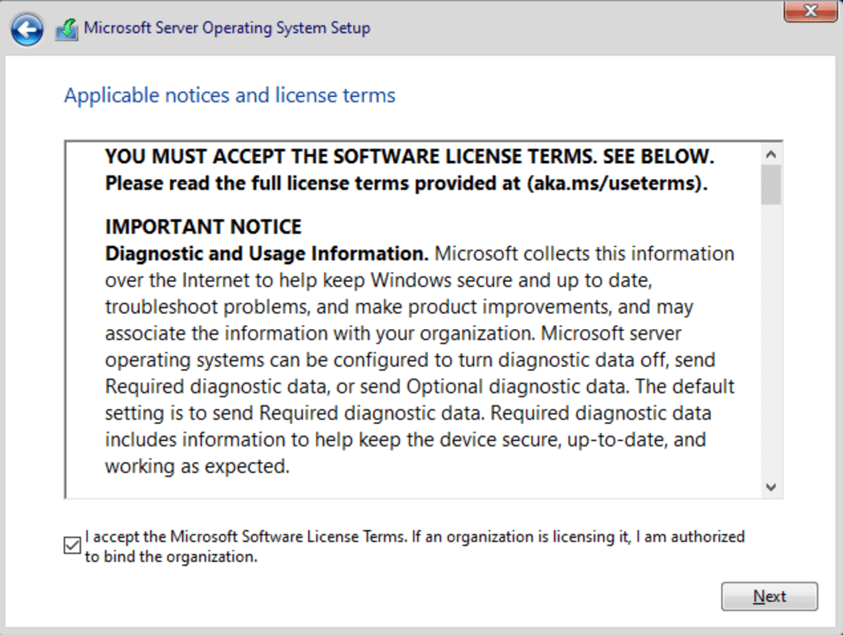
You should read ALL the license terms before clicking Next
Next, for what type of installation to choose, we’ll go with ‘Custom‘ as we are doing a clean installation with no existing operating system.
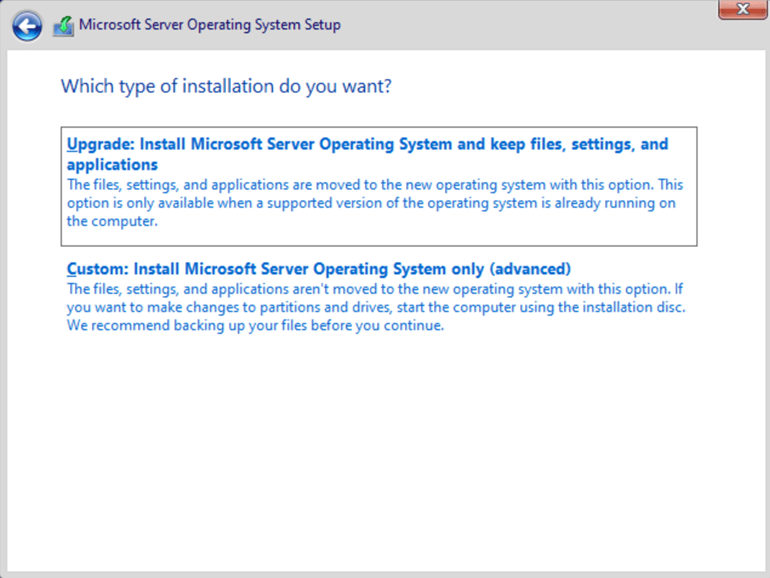
You’ll have a single, unallocated partition when doing a clean install, so click Next.
Now, Setup will copy all the installation files, unpack the image, detect devices, and bring you to your first post-setup task.
Step 5: Activate & License Correctly
- Open Settings > System > About > Change product key or upgrade your edition of Windows
- Enter your Windows Server 2022 Datacenter License Key
- Click Next and follow the prompts for activation
To convert from evaluation to full retail/volume version using DISM, open Command Prompt as Administrator and run:
DISM /online /Set-Edition:ServerDatacenter /ProductKey:XXXXX-XXXXX-XXXXX-XXXXX-XXXXX /AcceptEula
Then restart and complete activation.
Ready to Deploy Windows Server 2022 Datacenter?
If you need genuine licenses, CALs, or guidance on picking Standard vs. Datacenter, our team can help you size, procure, and activate correctly.
Click here to get your Microsoft Windows Server 2022 Datacenter Lifetime License Key
Need help now? Contact us with your server specs and role plans, and we’ll recommend the best licensing mix.