
What You Get with a Microsoft Account
A free Microsoft account gives you access to:
- Windows activation and settings sync across devices
- Microsoft 365 / Office apps (Word, Excel, PowerPoint)
- OneDrive — 5 GB free cloud storage
- Xbox Game Pass and gaming services
- Microsoft Store for apps and games
- Outlook — professional email with your own address
- Teams — video calls, messaging, and file sharing
- Access to your Windows download history via your account
How to Create a Microsoft Account — 7 Steps
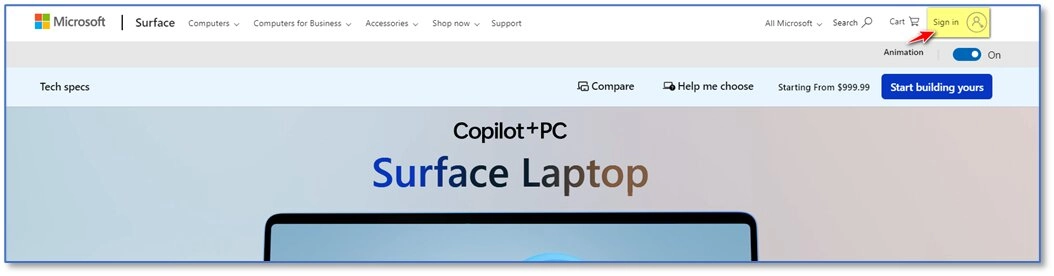
Step 1 — Go to Microsoft.com and Click “Sign in”
Visit microsoft.com in your browser. Click the Sign in button at the top right of the page to access the Microsoft sign-in portal.
Step 2 — Click “Create one!” to Start
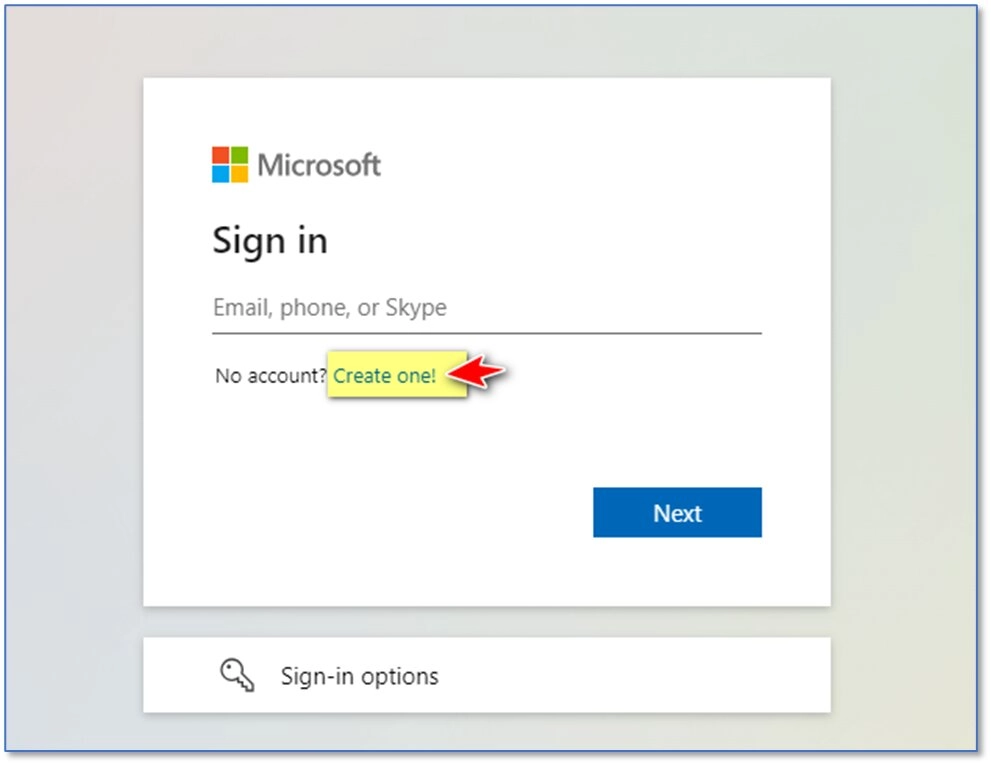
On the Sign in page, you will see “No account? Create one!” — click “Create one!” to begin the Microsoft account creation process.
Step 3 — Choose Your Email Address
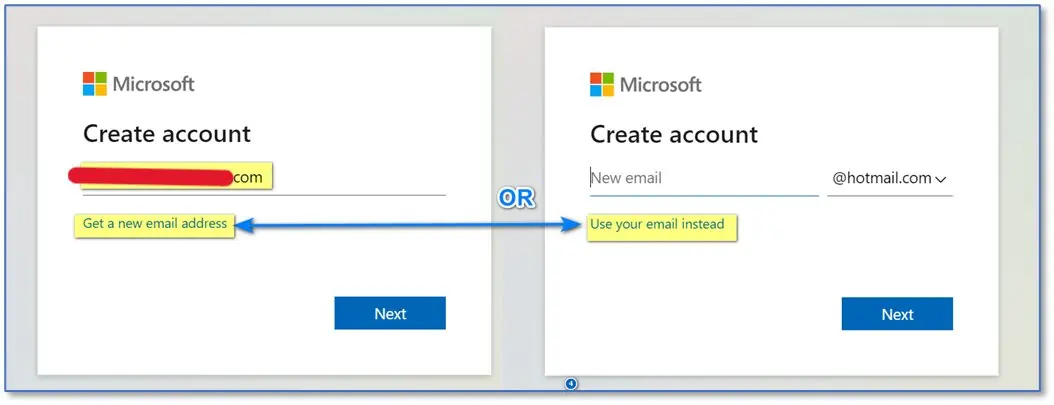
You have two options for creating a new Microsoft account:
- Use your existing email (Gmail, Yahoo, etc.) — type it in the left field and click Next
- Get a free new @hotmail.com address — click “Get a new email address” on the right
Step 4 — Create a Strong Password
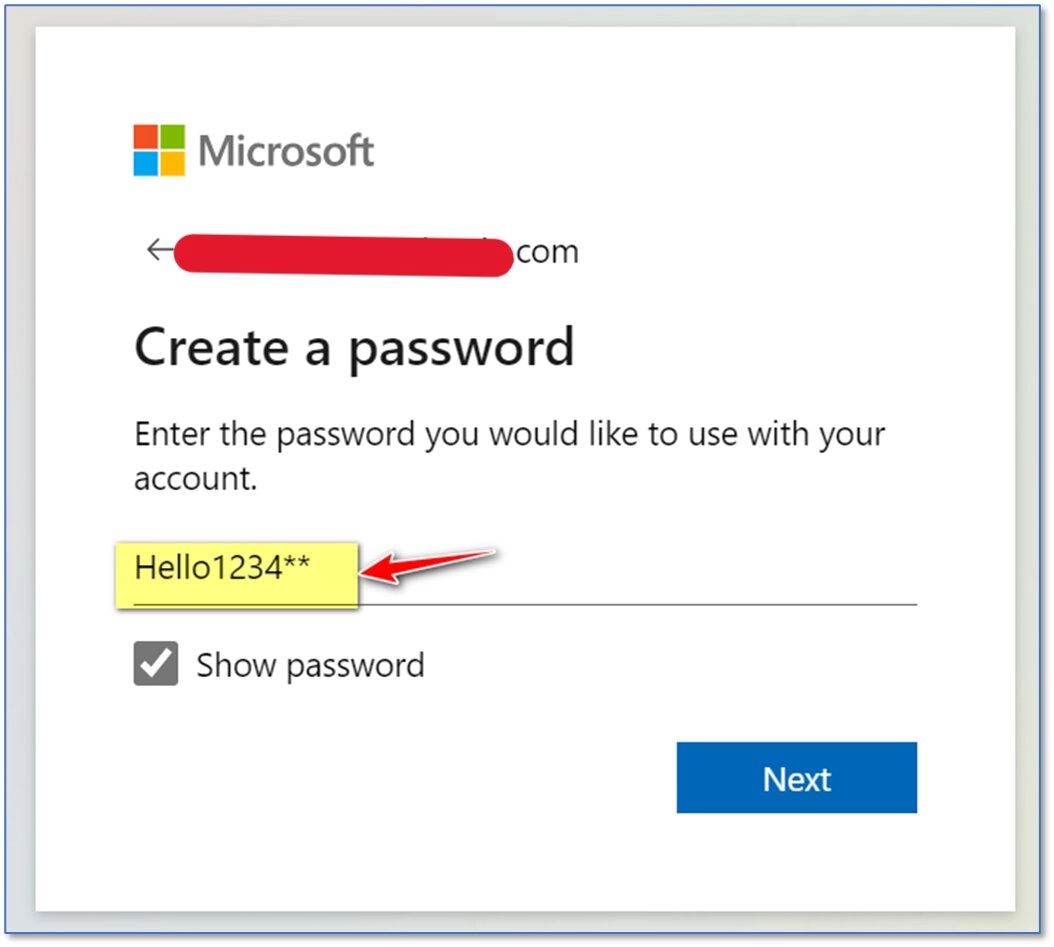
Enter the password you want to use for your Microsoft account. Use at least 8 characters with a mix of uppercase, lowercase, numbers and symbols. Check “Show password” to verify it, then click Next.
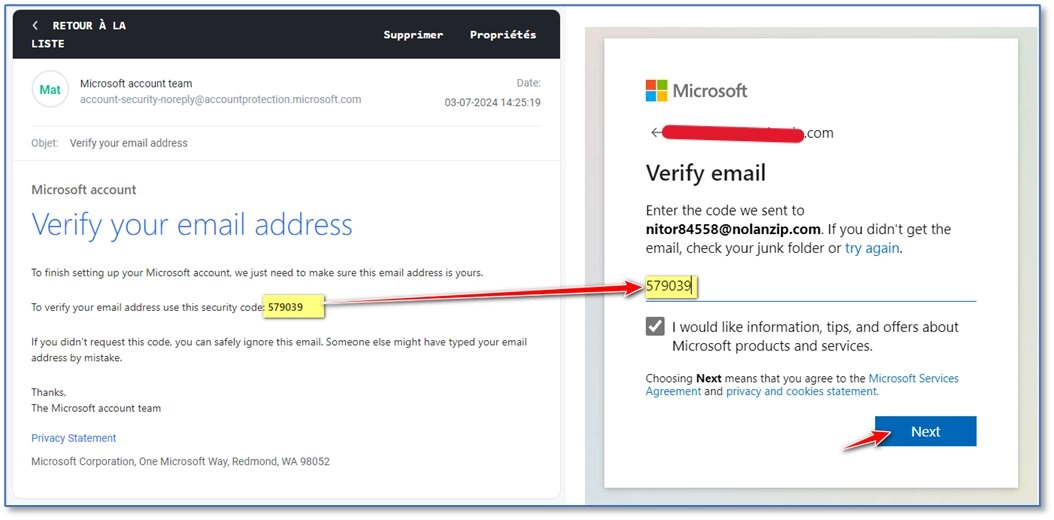
Step 5 — Verify Your Email Address
Check your inbox — Microsoft sends a 6-digit security code to your email. Open the email from the Microsoft account team, copy the code, paste it into the “Verify email” field on the right side, then click Next.
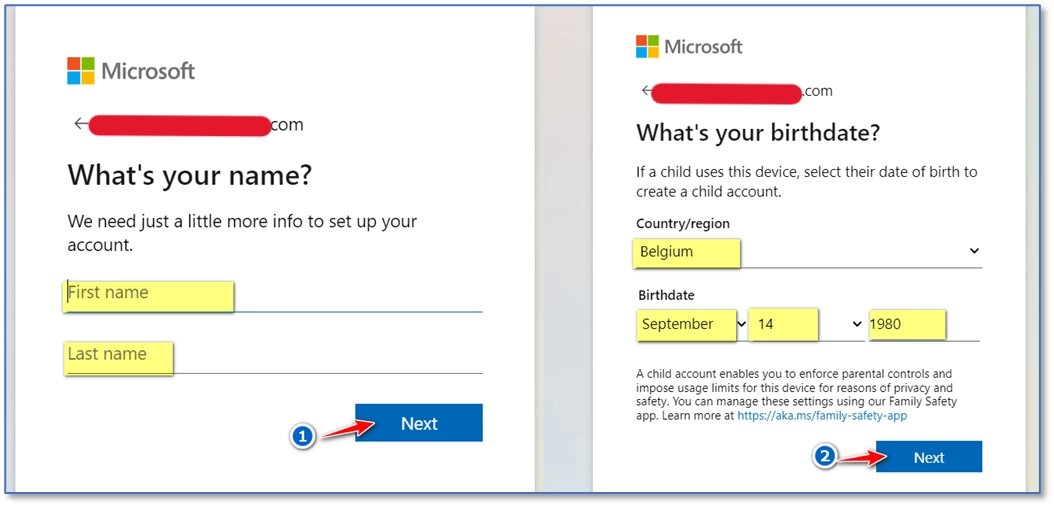
Step 6 — Add Your Name & Date of Birth
Microsoft now asks for two final details:
- “What’s your name?” — enter your First name and Last name, click Next
- “What’s your birthdate?” — select your Country/Region and Birthdate, click Next
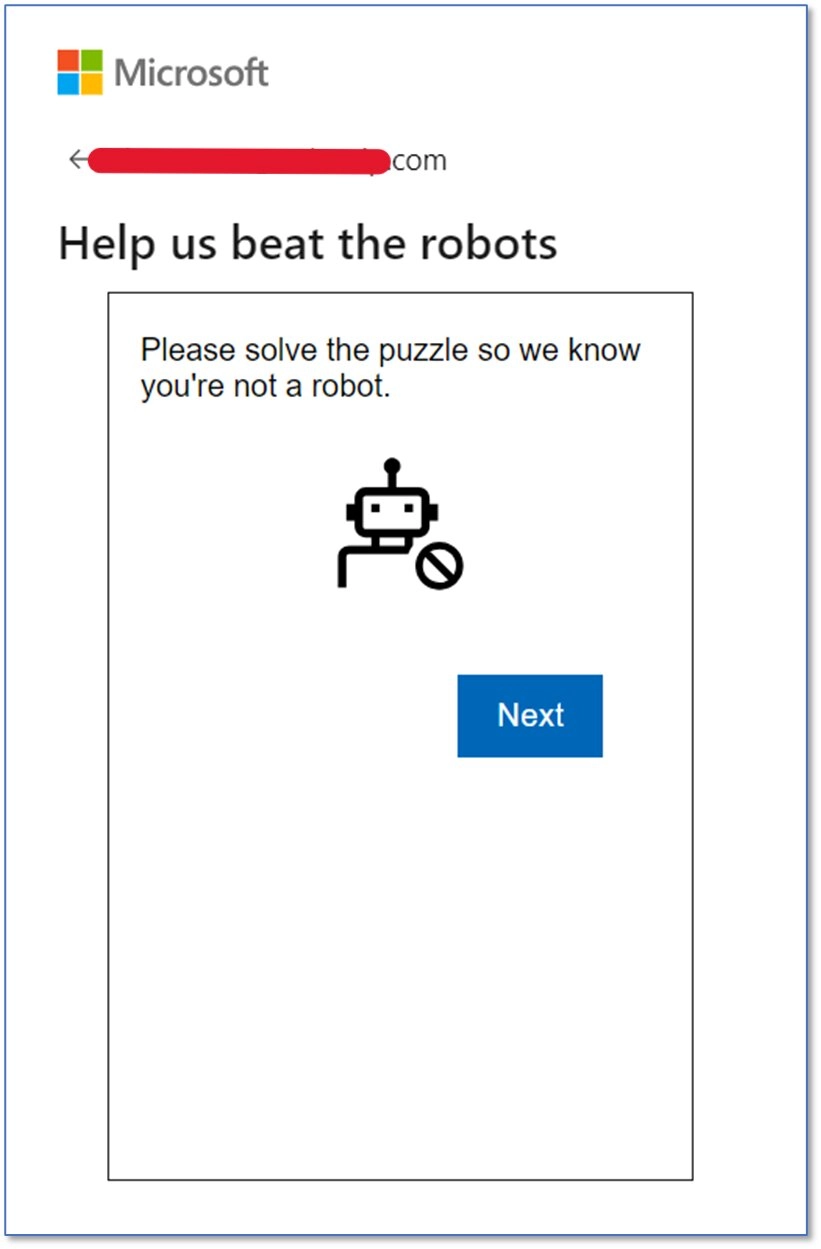
Step 7 — Complete the Final CAPTCHA Check
As a last security step, Microsoft asks you to “Help us beat the robots”. Click Next to load the puzzle, solve it quickly, and your Microsoft account will be fully activated.
Your Microsoft account is now fully set up and ready to use!
How to Sign Up for Microsoft Account on Mobile
The process for signing up for Microsoft account on iPhone or Android:
- Download Microsoft Authenticator from App Store or Google Play (free)
- Tap “Add account” → “Personal account”
- Follow the same 7 steps as above — your account works across all devices instantly
Pro Tip: Once you create a Microsoft account, you can use it to activate any Windows or Office license purchased from SoftwareInStore — just go to office.com/setup or microsoft.com/activate and enter your product key.
Troubleshooting Common Issues
| Problem | Solution |
|---|---|
| Email already in use | Try signing in instead, or use a different email |
| Verification code not received | Check spam/junk folder, or request a new code |
| Password not accepted | Use 8+ characters with mixed types — no common words |
| Account locked | Use Microsoft recovery: account.live.com/acsr |
| Can’t sign in on Windows | Settings → Accounts → Your info → “Sign in with Microsoft instead” |
Already Have Your Microsoft Account?
Activate your genuine Windows Operating Systems or Microsoft Office license instantly. Best prices, instant email delivery — no subscription ever. Shop Windows & Office Licenses