
Windows 10 Pro remains one of the most trusted operating systems for professionals and businesses. In this guide, you’ll learn how to check requirements, download the official media, install Windows 10 Pro, and activate it correctly.
1. Check System Requirements
Before you begin, make sure your PC meets these requirements:
- Processor: 1 GHz or faster compatible processor or SoC
- RAM: 1 GB (32-bit) or 2 GB (64-bit)
- Storage: 16 GB for 32-bit OS or 20 GB for 64-bit OS
- Graphics: DirectX 9 or later with WDDM 1.0 driver
- Display: 800×600 resolution or higher
- Internet Connection: Required for updates and activation
Run Microsoft’s PC Health Check tool to confirm compatibility.
2. Download the Installation Media
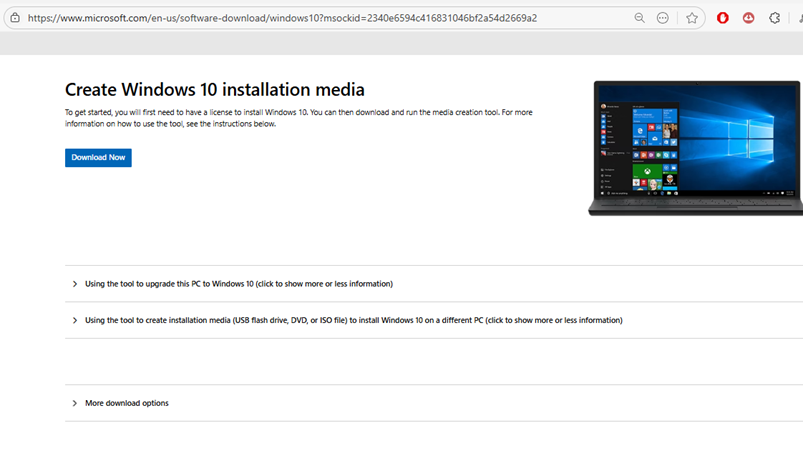
To get started, download the official Windows 10 installation media from Microsoft:
Steps:
- Click the link above.
- Click Download tool now.
- Open the downloaded file and follow the prompts.
3. Install Windows 10 Pro
Once the installation tool is downloaded, you can install Windows 10 Pro by following these steps:
Step 1: Use the Media Creation Tool to create a bootable USB drive. Insert a USB stick (8GB or larger) and select Create installation media (USB flash drive, DVD, or ISO file).
Need help creating bootable media? Follow this guide: Creating a Bootable Windows USB Drive
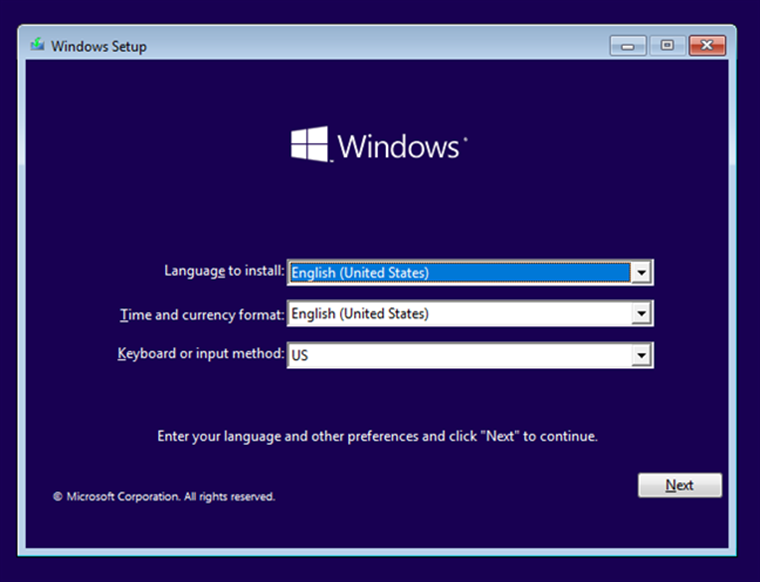
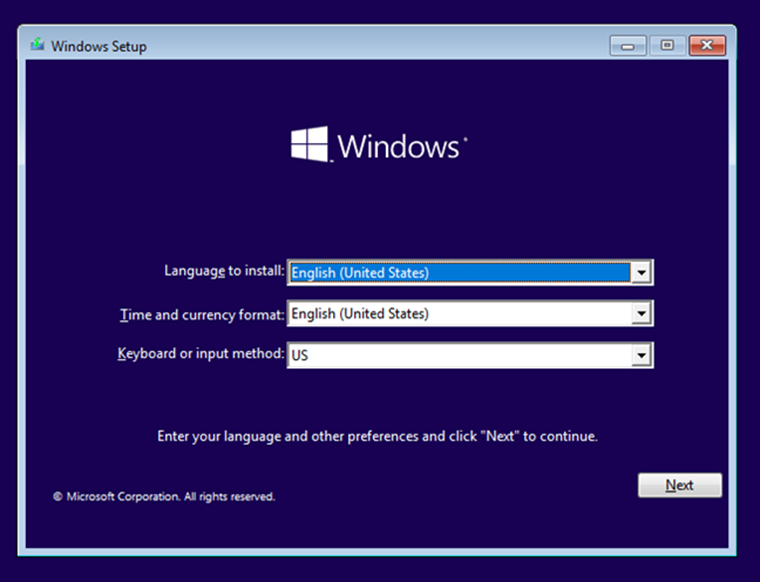
The Windows 10 Setup first asks what language, time and currency format, and keyboard input method you want to use. Make the selections you prefer and press Next.
Click or tap Install now to start the Windows 10 installation.
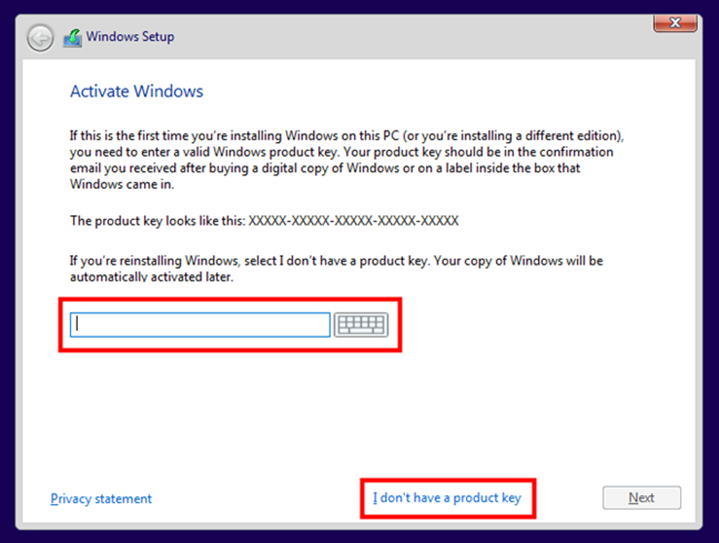
Enter your Windows 10 product key and click Next. If reinstalling or doing a clean install, choose ‘I don’t have a product key’ to activate later
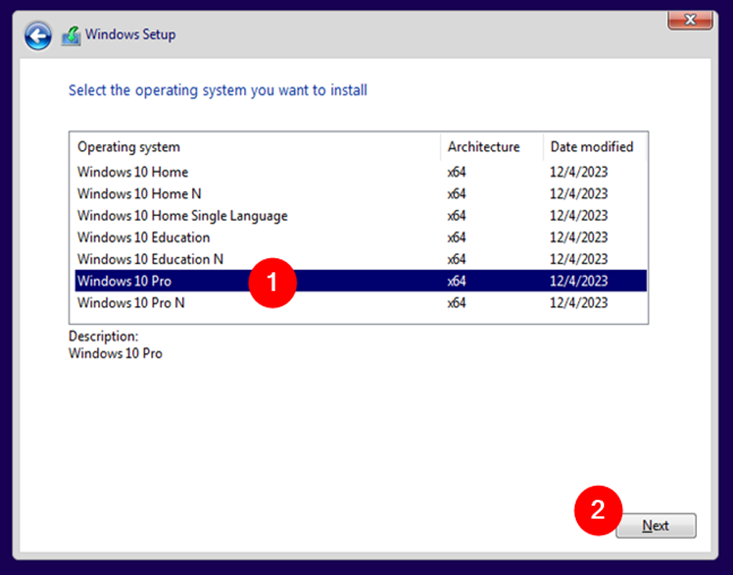
Choose which Windows 10 edition you want to install: from Windows 10 Home to Windows 10 Education, all the way to Windows 10 Pro.
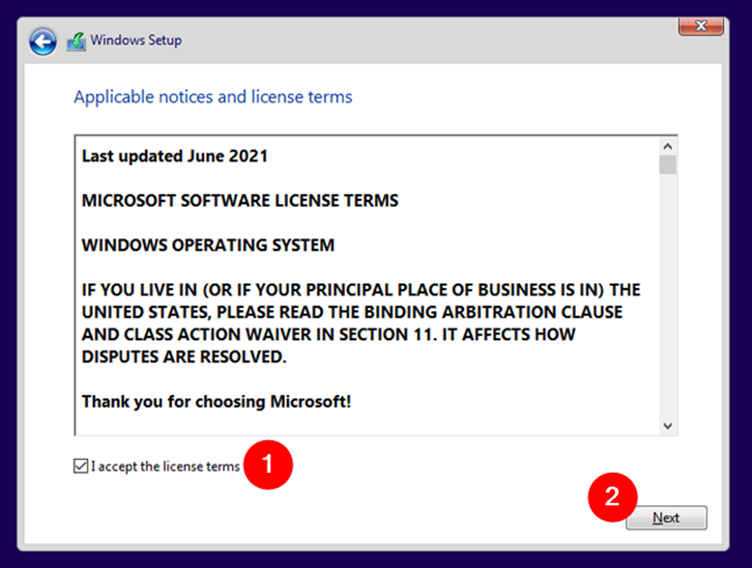
You are shown the Windows 10 license terms. Read them if you wish and have the time. Then, check the “I accept the license terms” box and press Next.
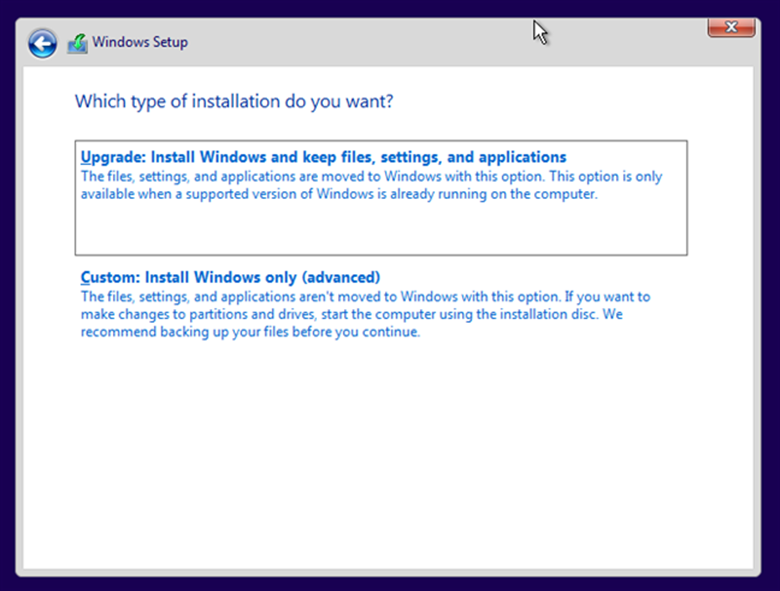
Choose the installation type: select ‘Custom’ for a clean install or ‘Upgrade’ to keep your files, settings, and apps.
Select the drive or partition where you want to install Windows 10, adjust partitions if needed, then click Next.
4. Activate Windows 10 Pro
After installation, activate your copy of Windows 10 Pro:
- Open Settings → Update & Security → Activation.
- Click Change product key.
- Enter your Windows 10 Pro license key.
- Click Activate.
Your PC is now fully licensed and ready to use!
Why Choose Windows 10 Pro?
Windows 10 Pro is designed for professionals and power users who need top-notch performance, security, and features like:
- BitLocker encryption
- Remote Desktop access
- Hyper-V virtualization
- Group Policy management
It’s a trusted and reliable operating system for businesses and individuals.
Get Your Genuine Windows 10 Pro License
Upgrade your PC today with a Windows 10 Pro license at a great price. Enjoy lifetime activation and peace of mind with a genuine product.
Buy Windows 10 Pro License Key
Experience the power, security, and reliability of Windows 10 Pro today!
Need help now? Contact us and we’ll recommend the best licensing mix.